Export PDF pages as image files
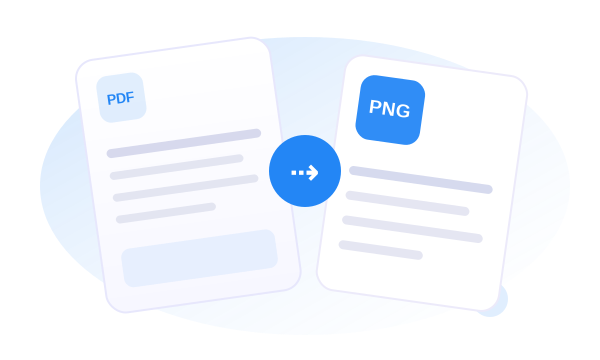
The PDF to Images tool turns each page of a PDF into a PNG image. This is useful when you need to share a page as a picture, add a page to a presentation, or use a document page in a design workflow. The exported pages are bundled into a ZIP download.
How to convert PDF pages to PNG
- Choose a PDF from your device.
- Select Export PNG pages.
- Wait while each page is rendered.
- Download the ZIP file and extract the PNG images.
When should you use PDF to Images?
Use page images when a recipient needs a visual copy rather than selectable text. For editing the words, use PDF to Word. For combining photos into a document, use Images to PDF.
Quality and file size
Image dimensions and file size depend on the rendering settings and the complexity of the PDF. Image files can be larger than the original PDF, especially when it contains many pages or high-resolution graphics. Review the exported images before printing or publishing them.
Frequently asked questions
Does the tool export every PDF page?
Yes. The tool renders the pages in the selected PDF and places the PNG files in a ZIP archive.
Can I edit the text inside a PNG?
PNG is an image format, so its text is not directly editable. Use OCR or a PDF-to-Word workflow if you need editable text.