Convert a Word document to PDF
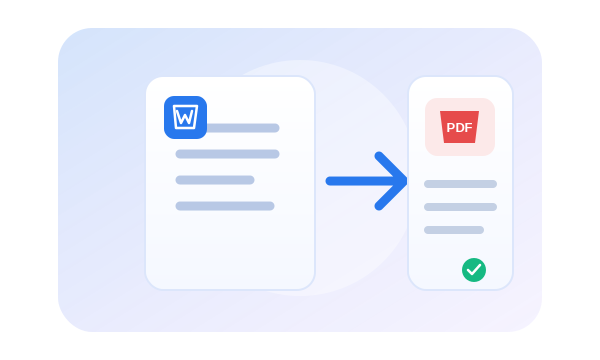
Use WordToPDF to open a DOCX document in your browser, convert its contents into a print-ready layout, and save the result as a PDF using your browser's print dialog. The first version supports DOCX files, not older DOC files.
How to convert DOCX to PDF
- Choose a DOCX file from your device.
- Select Create PDF.
- Review the document in the print window.
- Choose Save as PDF as the printer destination and save the file.
Formatting and compatibility
Word documents can use fonts, page layouts, headers, footers and tables that browsers may render differently. Review page breaks, tables, images and special fonts before saving. Complex layouts may need adjustment in Word before conversion.
Privacy
The conversion runs in your browser. The selected document is not sent to a WordToPDF application server by this tool. The page loads its document conversion library from a third-party content delivery network. Review the site's privacy policy before processing confidential files.
Frequently asked questions
Does this tool support DOC files?
The current version supports modern DOCX files. Older DOC files are not supported.
Does it download the PDF automatically?
It opens your browser's print dialog. Choose Save as PDF to create and download the PDF.
Will the PDF look exactly like the Word file?
Not always. Fonts, page breaks, tables and complex layouts can render differently. Review the print preview before saving.
Need the reverse conversion? Try PDF to Word.