Extract selected pages from a PDF
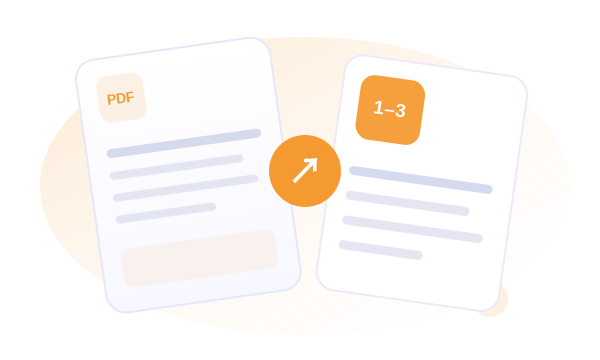
Split PDF lets you create a new PDF from selected pages of an existing document. It is useful when you need to share one chapter, remove unrelated pages from a working copy, or separate a short section from a larger file.
How to split a PDF
- Choose the PDF file.
- Enter the page numbers you want to keep. Use commas for separate pages and hyphens for ranges, for example
1, 3-5, 8. - Leave the page field blank if you want to keep all pages in a new file.
- Select Create selected pages and download the result.
Page numbering tips
Enter page numbers as they appear in the PDF viewer, starting at page 1. A printed page label inside the document may differ from the PDF's actual page position. Check the output before sending it to someone else.
Frequently asked questions
Can I extract one page?
Yes. Enter a single page number, such as 4, to create a PDF containing that page.
Can I extract a range?
Yes. Enter a range such as 4-9. You can combine ranges and individual pages using commas.
Need to combine files instead? Use Merge PDFs.