Extract text from multiple images in one session
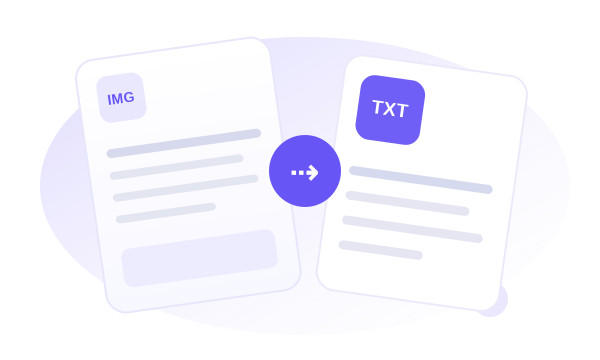
Batch Image to Text is designed for users who have several screenshots, photographs or scanned pages to process. Instead of running OCR separately for each image, select multiple files and process them one by one in the browser. The recognised text is combined into one text result.
How to run batch OCR
- Choose multiple image files.
- Select the recognition language that matches the text.
- Click Extract all text.
- Review the combined output and correct any recognition mistakes.
- Download the result as a TXT file.
Improve OCR results
Use sharp images with readable text, good lighting and minimal perspective distortion. If a photo contains multiple languages, choose the closest available language combination. OCR results are not guaranteed to be perfect, so verify names, dates, amounts and technical terms.
Frequently asked questions
Can I process several screenshots together?
Yes. Select multiple images and the tool processes them sequentially in the browser.
What format is the result?
The combined recognised text can be downloaded as a plain TXT file.
For a single image, use Image to Text OCR.